
TM SIM Registration Help & FAQs
We’ve covered all the common questions related to TM SIM registration, GCash issues, SIM deactivation,
OTP not receiving, and other problems users often face. If your question isn’t listed or you didn’t find the answer you were looking for,
please report it or send it to us via email. You can also join our Facebook community for help.

SIM Registration Help
TM SIM registration is very easy:
- Go to simtmregistration.com
- Click the “Register” button.
- Enter your mobile number starting with 9 (without +63).
- Example: If your number is +63 935 077 6878, enter it as 9350776878 (without the +63).
- Upload your valid ID and a clear selfie (make sure your ID photo is readable).
- Fill out the registration form with accurate and valid details.
- Review your information carefully, then submit the form.
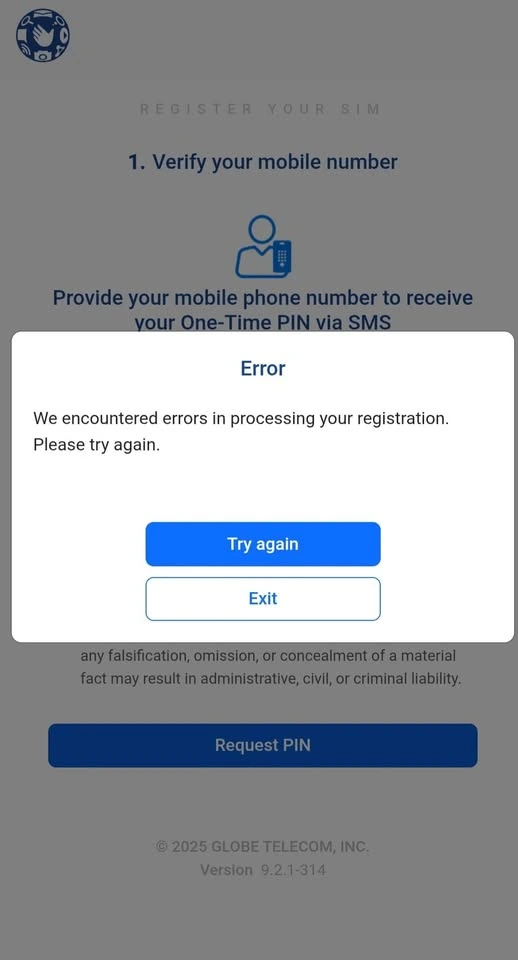
This usually means the TM system encountered an error or didn’t accept your input. Try the following:
- Wait 15–30 minutes and try again — the system might be busy or under maintenance.
- Use a stable internet connection (mobile data often works better than Wi-Fi).
- Enter your number in this format: 917XXXXXXXX (without 0 or +63).
- If using the TM registration app, clear cache and data, then reopen it.
- If it still fails, uninstall and reinstall the app from the Play Store.
- Your SIM might already be registered — check at simtmregistration.com.
- If the issue continues, call 808 or (02) 7730-1500 from your TM SIM.
If your ID is blurred, your registration might not go through successfully. The online registration process is the same for both new and old SIMs, so you should upload a clear photo of your ID.
If one ID is blurred, try using another valid ID from the list below:
- UMID Card
- NBI Clearance
- BIR ID
- SSS ID
- OWWA ID
- Voter’s ID
- Senior Citizen ID
- IBP ID
- Driver’s License
- PRC ID
- Passport
- PhilHealth ID
- Philippine National ID
Make sure the photo is bright, clear, and all details are readable before uploading.
You should enter your mobile number starting with 9 (without +63).
Example: If your number is +63 935 077 6878, enter it as 9350776878 (without the +63).
If you still don’t receive the OTP, contact TM Support by calling 808 or (02) 7730-1500 using your TM SIM.
First, check whether your SIM is temporarily or permanently deactivated.
To check your SIM status:
- Insert your SIM into your phone.
- If there’s no signal or it shows “No Service” even after restarting, it might be deactivated.
- Try dialing *143# or sending a text — if it fails, your SIM is most likely inactive.
- You can also contact TM Customer Service by dialing 808 or (02) 7730-1500 using another TM/Globe SIM to confirm its status.
📵 If your SIM was inactive for more than 120 days (without load, text, or call usage), it’s permanently deactivated and cannot be reactivated.
What you can do:
You’ll need to get a SIM replacement with the same number. Just visit any Globe or TM Store and bring:
- A valid ID
- Your deactivated SIM card (if available)
Once you get your replacement SIM, you can log in to your GCash account again using the same mobile number.
If you haven’t received a confirmation message, you can check your TM SIM registration status online by following these steps:
- Go to simtmregistration.com
- Click the “Registration” button
- Enter your mobile number starting with 9 (example: 935XXXXXXX)
- Enter the OTP sent to your number
- If you see the message “Whoops! Your SIM has been previously registered,” it means your SIM is already registered — no need to worry about the confirmation message
- If that message doesn’t appear, please register again using the same portal
If you haven’t received a confirmation message, you can check your TM SIM registration status online by following these steps:
Go to simtmregistration.com
Click the “Registration” button
Enter your mobile number starting with 9 (example: 935XXXXXXX)
Enter the OTP sent to your number
If you see the message “Whoops! Your SIM has been previously registered,” it means your SIM is already registered — no need to worry about the confirmation message
If that message doesn’t appear, please register again using the same portal
This issue usually happens if your ID photo is blurry or unclear. Please take a clear, well-lit picture of your ID and try again.
If the issue still persists, try using a different valid ID from the list below:
- UMID Card
- NBI Clearance
- BIR ID
- SSS ID
- OWWA ID
- Voter’s ID
- Senior Citizen ID
- IBP ID
- Driver’s License
- PRC ID
- Passport
- Philippine National ID
You don’t need to do anything right now. This message means your SIM details are already in the TM system. Just wait for a few days — the registration status will update automatically.
Yes, you can still register your SIM even if you just bought it recently. There’s no time limit for SIM registration — you can register anytime through the official portal at simtmregistration.com.
To register your new TM SIM, visit simtmregistration.com.
Read the registration guide carefully, then click the “Registration” button to start. Follow the on-screen instructions and fill out your details correctly.